
A custom league lets you build your own baseball competition for solo play: a collection of favorite teams, a competition among pennant winners, or a matchup of clubs from different eras. NSB’s League Builder lets you turn that idea into a league with its own teams, schedule, playing environment, and workload settings.
This guide follows the basic historical-team workflow, from choosing a league format through installing the completed league and running your season. Challenge Mode adds the option to choose one team to manage and an AI level for the league.
Video Walkthrough
Watch Create and Run a Custom League on YouTube
Before you begin
Make sure your account has licensed access to custom-league creation, and stay connected to the internet during setup. NSB sends your design for construction and delivers the completed league for installation. Keep the Designer open while that request is being processed.
1. Choose your league format
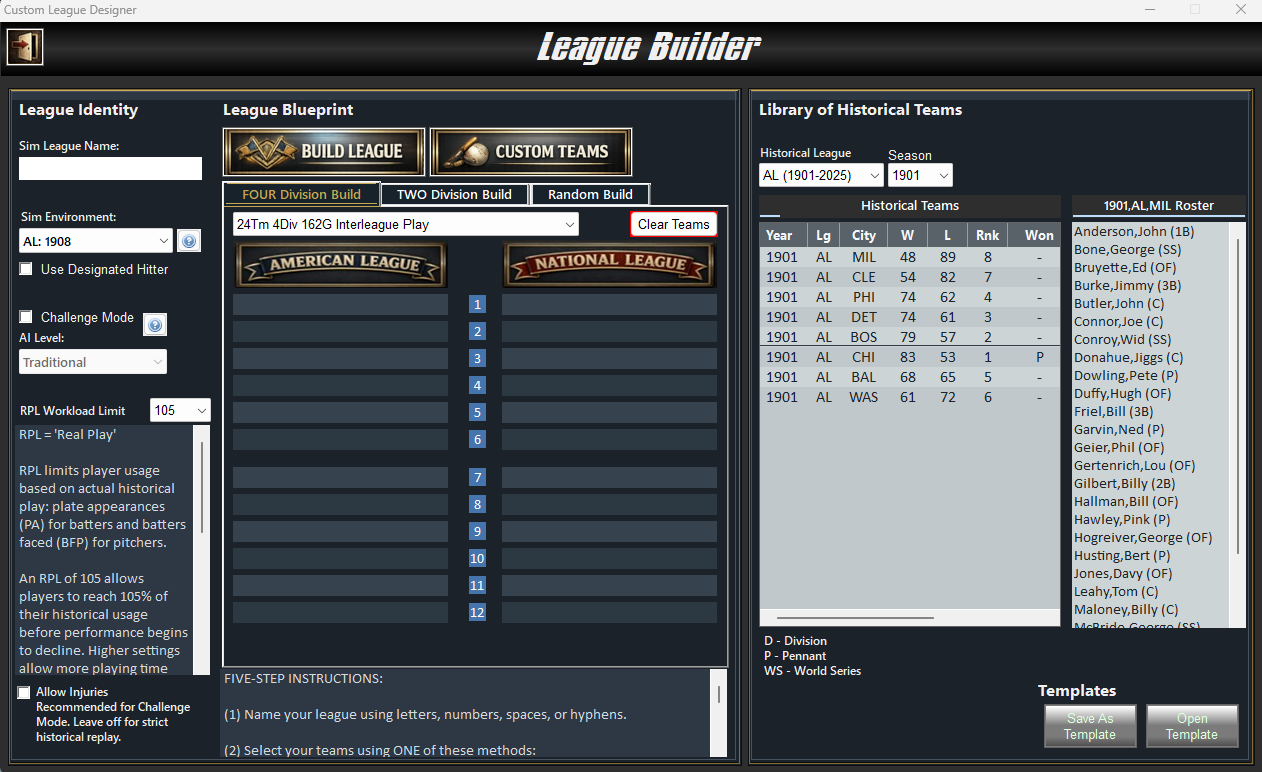
Open the League Builder and choose TWO Division Build for 16 teams or FOUR Division Build for 24 teams.
| Format | Teams | Division structure |
|---|---|---|
| Two divisions | 16 | Eight teams per division |
| Four divisions | 24 | Six teams per division |
Fill the layout you intend to submit and select a schedule for that format. Each layout has its own schedule selection. Before submitting, return to the layout you want NSB to build.
2. Choose the teams
You can place historical teams individually or ask the Designer to select a field from teams that meet your criteria.
Place historical teams yourself
Select a historical league and season, then browse its teams. Selecting a team lets you inspect its roster. Drag the team into the desired slot in your league layout, and continue until every slot is filled.
Each selected team-season must be unique. Different seasons of the same franchise can represent separate entries in your league.
Generate a field with selection filters
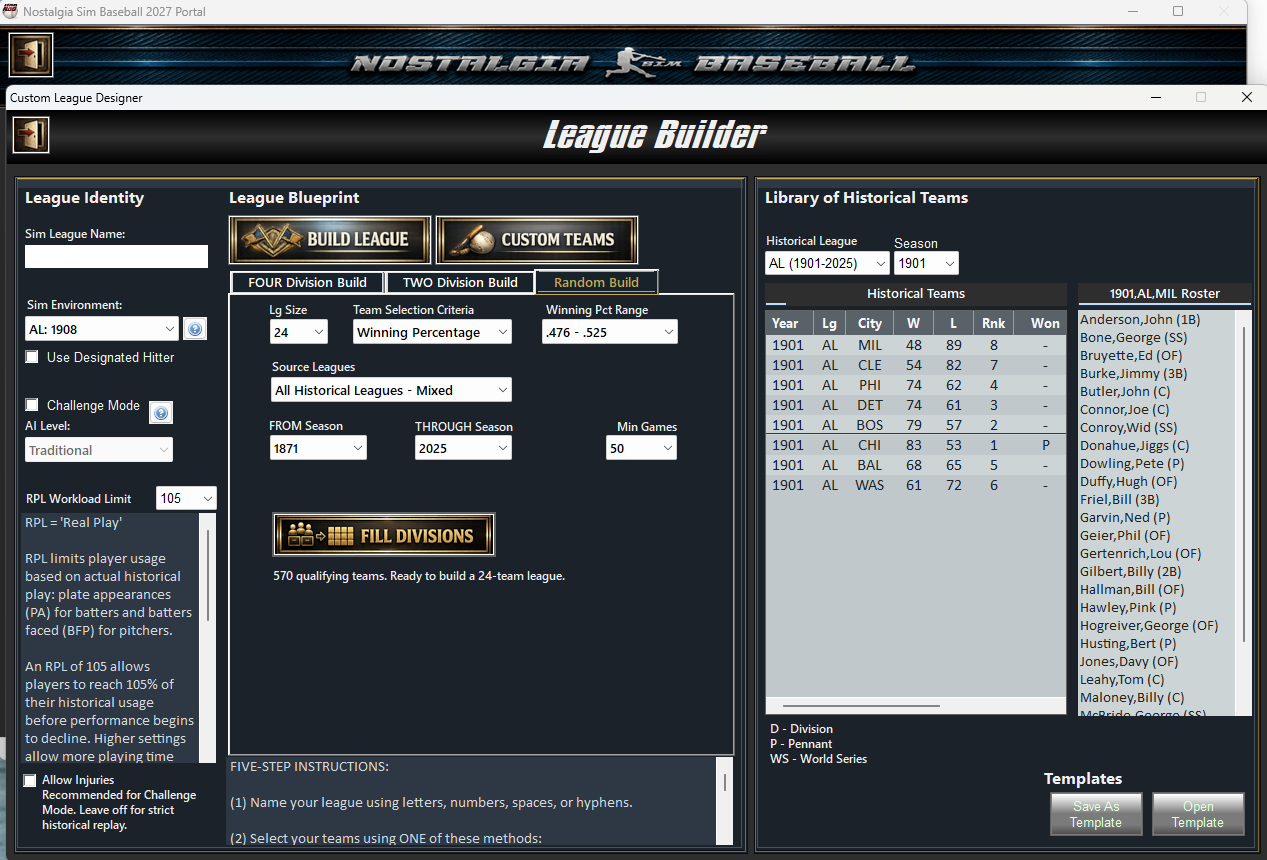
Open Random Build. Set the From and Through seasons to define the eligible period; both endpoints are included. Then choose the source leagues, minimum games played, team-selection criterion, and league size.
- Source leagues: use the American League, National League, a mixed historical pool, or an equal AL/NL split. The mixed pool includes supported earlier major leagues as well as AL and NL teams.
- Minimum games: exclude team-seasons with fewer games than the threshold you select.
- Selection criterion: choose Winning Percentage, Division Winners, Pennant Winners, Champions, or Any Qualifying Team.
- Winning-percentage range: when that criterion is selected, both ends of the selected range count as eligible.
The qualifying-team count tells you whether the filters leave enough choices to fill the league. An equal AL/NL split requires at least eight qualifying teams from each league for a 16-team design, or twelve from each for a 24-team design. If the pool is too small, broaden the years or other filters.
When the count says the league is ready to build, click Fill Divisions. The generated selection draws from qualifying team-seasons without repeating the same entry. The filters define eligibility; they do not guarantee that the selected clubs will be equally strong.
Save your existing work as a template before generating another field. Generation can replace the teams and custom-team work on both league-layout tabs. NSB asks for confirmation when there is existing work to replace.
3. Set the baseball environment and rules
The Sim Environment selection specifies the league and year that provide the baseball context for your competition. NSB’s environment help identifies tendencies such as strikeouts, home runs, stolen bases, and double plays. Your selected teams can come from different seasons while sharing one simulation environment.
Choose a schedule, decide whether to use the designated hitter, and select whether injuries will be enabled. The DH choice is submitted as a league setting alongside the environment.
4. Decide how strongly historical workload should matter
RPL means Real Play. It measures usage against historical playing time: plate appearances for batters and batters faced for pitchers.
At an RPL setting of 105, a player can reach 105 percent of historical usage before RPL-related performance decline begins. A higher setting provides more room to use players; a lower setting makes historical workload more restrictive.
Consider workload when mixing teams from different eras. Reserve rosters provide additional personnel, and NSB’s Designer help also identifies waivers and trades as possible sources of replacements when those options are available in your league.
5. Choose your managed team in Challenge Mode
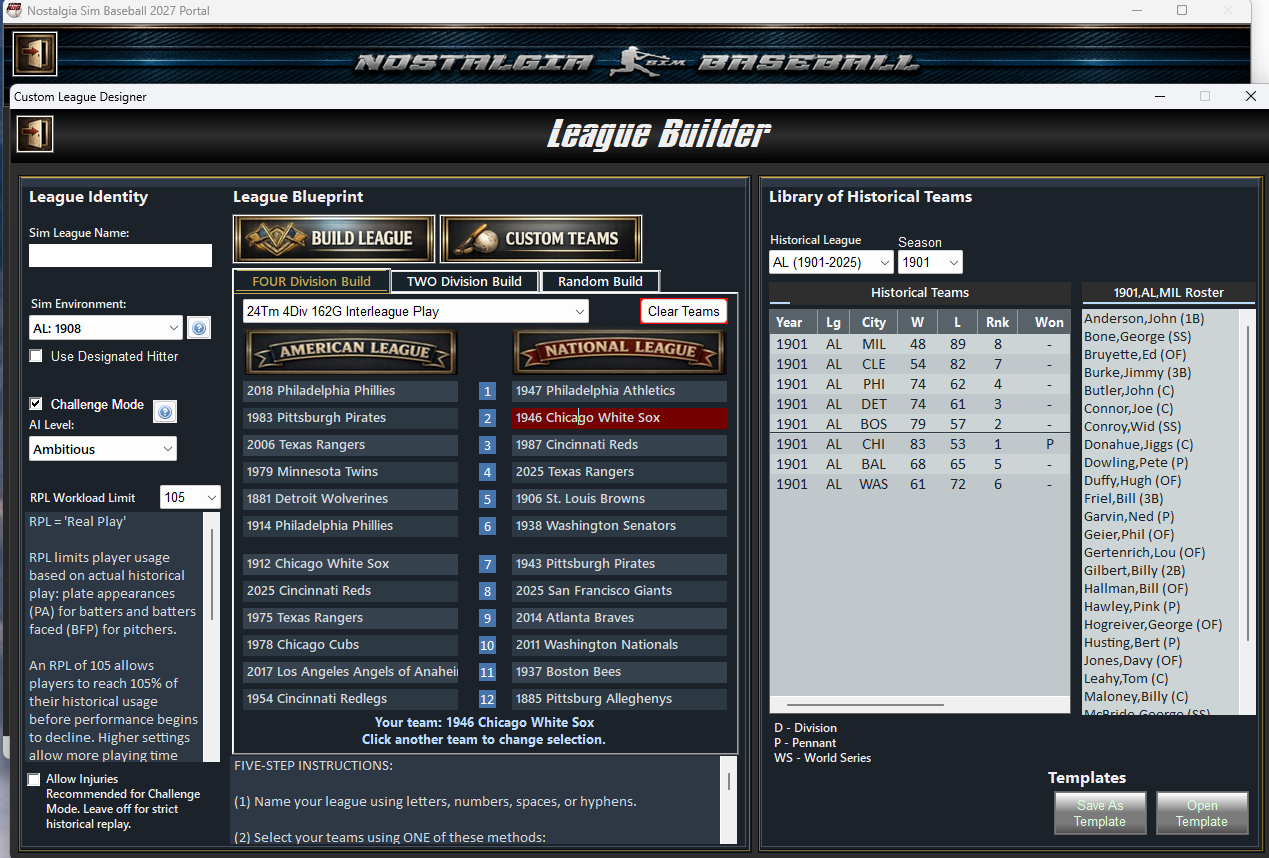
If you want to build around one managed team, enable Challenge Mode, click that team in your design, and choose the AI Level: Traditional, Competitive, Ambitious, or Expert. The selected team is highlighted in red, and the Your team message beneath the layout confirms your choice. Click another team to change it. The chosen team can occupy any filled slot; it does not have to be the first team in the layout.
Check the managed-team selection after replacing teams or generating a new field. A generated rebuild clears that selection, so choose your team again before submitting. NSB validates the Challenge team and AI setting as part of league creation.
6. Save, name, and review the design
Use Save as Template to keep a reusable copy of your design. Use Open Template to load a saved design later.
Give the league an unused name. A plain name using letters, numbers, spaces, and hyphens avoids the punctuation restrictions checked during submission.
Before submitting, review the following:
- Every team slot in the chosen layout is filled, with no duplicate team-season entries.
- Any work started in the Team Designer is complete, or has been cleared there.
- The schedule, simulation environment, RPL, DH choice, and injury setting are correct.
- If Challenge Mode is enabled, the intended managed team and AI level are selected.
- The league has an unused name and your account has the required licensed access.
7. Submit and allow installation to finish
Click Build League to submit the completed design. NSB checks it, sends the request, and displays progress while the league is built and prepared for installation.
Leave the Designer open. You can minimize it while you do something else. Construction and delivery may take several minutes; watch the status messages rather than sending another request while one is pending.
When the league is ready, NSB attempts automatic installation. If the league was created but automatic installation cannot finish, use the Portal’s Restore option to locate and install it.
Once installation finishes, select your league and review its roster and rotation settings before beginning your first season.
8. Run your season in sessions
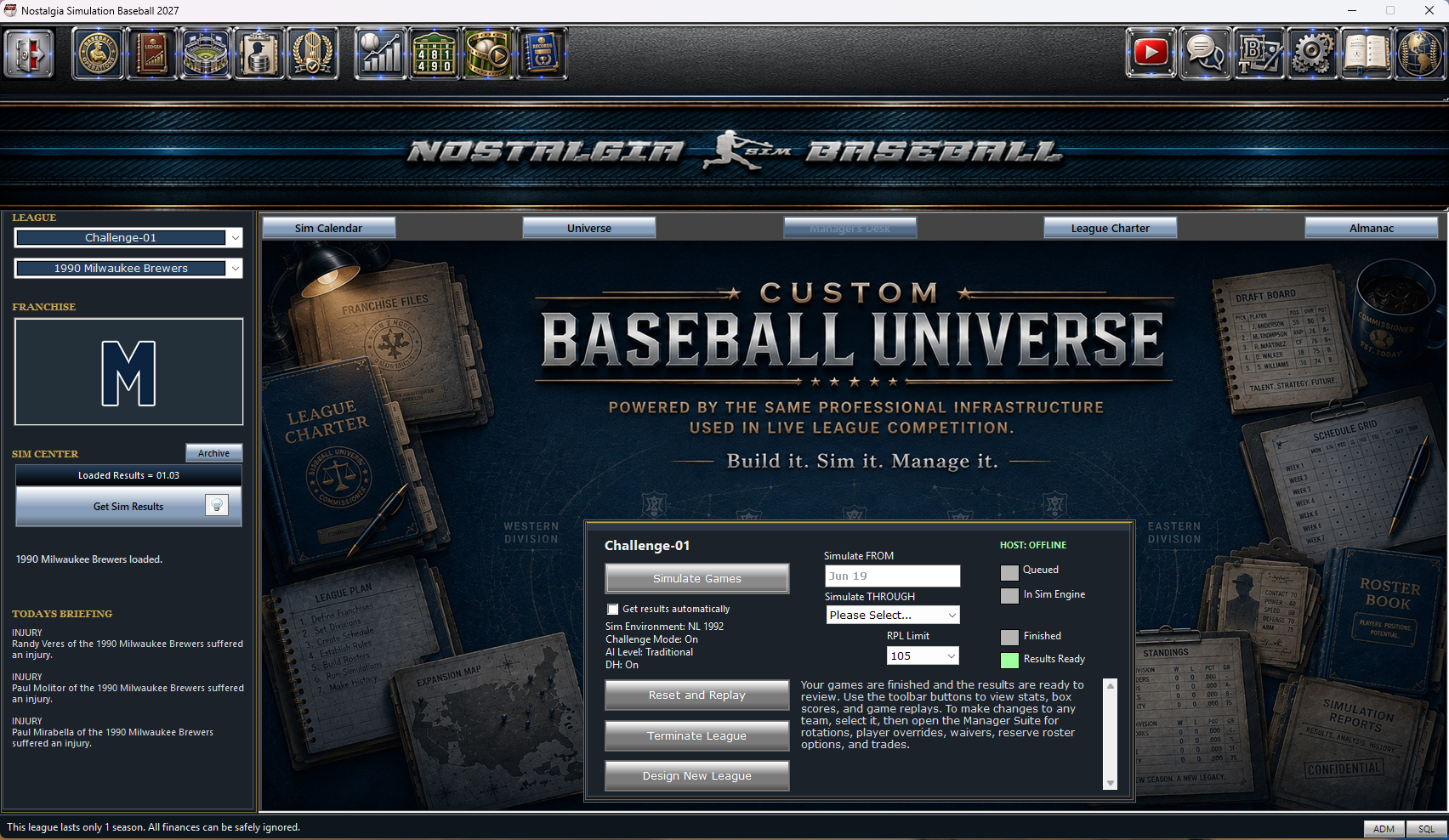
The simulation panel shows your league’s current settings and the next Simulate FROM date. During the regular season, choose a Simulate THROUGH date from the available list. You can request up to 45 calendar dates in one session, subject to the remaining regular-season dates. These are schedule dates, so they do not necessarily represent 45 games for each team.
Select the RPL Limit for the session, then click Simulate Games. You must have the latest league results loaded before submitting another run. If NSB reports an outdated packet, retrieve the latest results first.
You can queue a session while the host is busy or offline. It will wait for the host to become available. Watch the status message and indicator lights:
- Queued: your request is waiting for simulation.
- In Sim Engine: the games are being played.
- Finished: the run has completed and its results are available to retrieve.
- Results Ready: the current results have been loaded and are ready to review.
When the run finishes, click Get Sim Results in the Sim Center on the left. To have NSB retrieve completed results for you, select Get results automatically on the simulation panel. This option retrieves results; you still choose and submit each new simulation session.
Review standings, player statistics, box scores, and game replays before choosing your next session. Shorter sessions give you more opportunities to review your team and make management decisions between runs. In Challenge Mode, focus those decisions on your selected team.
For postseason play, the date selector offers the applicable playoff round rather than regular-season dates.
9. Replay a league or finish with it
Reset and Replay requests a return to the league’s original opening-day state. All results and changes since the league was created will be lost. Confirm only when you want to start that league over. When the reset is ready, retrieve its results to finish loading the restored league.
Terminate League permanently removes the league from your computer and requests its removal from the server. Its confirmation warns that the action cannot be undone. Use it only when you are finished with the league.
Design New League opens the League Builder so you can create another competition.
Common setup questions
Why does the Designer say there are not enough qualifying teams?
The selected filters leave fewer eligible team-seasons than the league needs. Broaden the year range, relax another filter, or check that each league has enough teams when using an equal AL/NL split.
Can I use the same historical team twice?
The same exact team-season cannot occupy two slots. You can choose that franchise from different seasons.
Do I need to join an existing league first?
Creating your custom league is a separate workflow from joining an existing public or private league. Use the League Builder for this process.
What if I already have a custom-league request pending?
Wait for the existing request to finish. If it remains unresolved, contact NSB support before attempting another submission.